User Guide
How to Connect GFBT Lite to iPhone
Learn how to connect GFBT Lite to your iPhone through Bluetooth and the Aker app, then start iPhone GPS Simulation for reliable GPS spoofing.
Follow these steps in order to connect GFBT Lite to your iPhone and start location simulation with the Aker app.
You need to complete two Bluetooth connection steps:
- Connect GFBT Lite in the iPhone Bluetooth Settings.
- Connect GFBT Lite again inside the Aker app.
These two connection steps must be completed in this exact order.
Step 1: Connect GFBT Lite in iPhone Bluetooth Settings
First, use a Type-C plug to connect the GFBT Lite device to power the GFBT Lite.
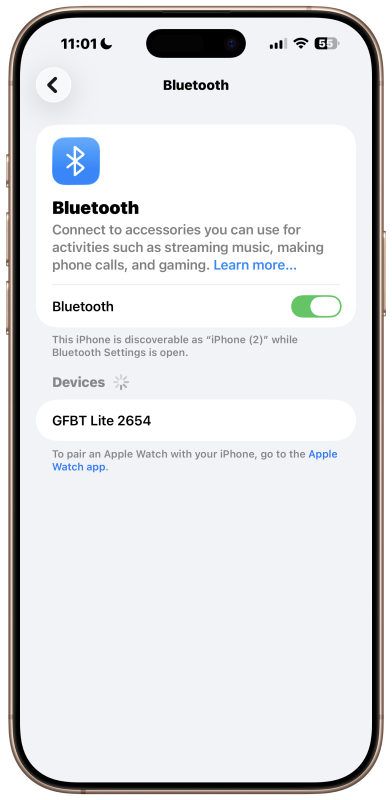
Then open the Bluetooth settings on your iPhone:
Settings > Bluetooth
In the Bluetooth device list, select GFBT Lite to connect.
Step 2: Open the Aker app
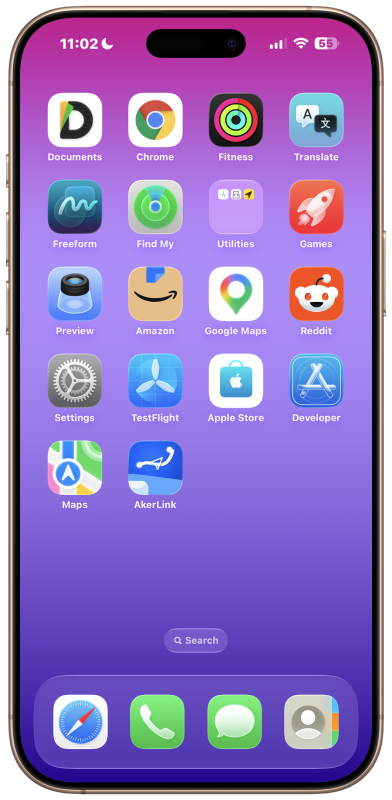
After GFBT Lite is connected in the iPhone Bluetooth settings, return to the Home Screen.
Open the installed Aker app.
Step 3: Tap the Not Connected button
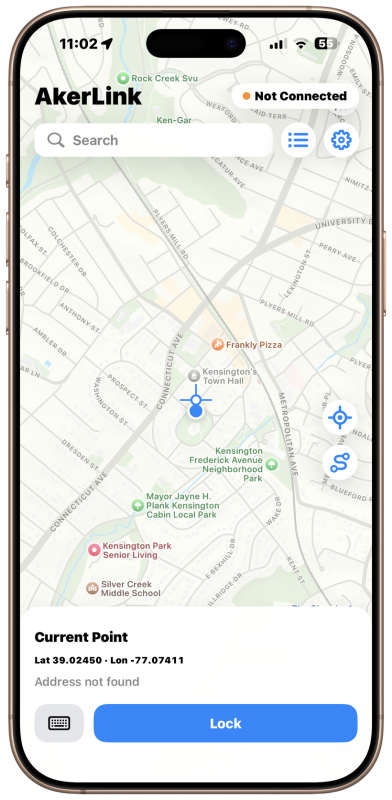
Inside the Aker app, tap the Not Connected button in the upper-right corner.
This opens the device connection panel inside the app.
Step 4: Connect GFBT Lite inside the Aker app
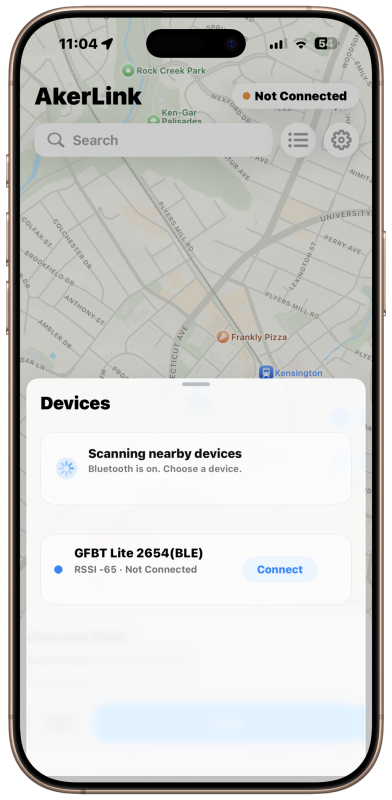
In the pop-up device panel, select GFBT Lite and tap Connect.
This is the second Bluetooth connection step.
Only after this step is completed is GFBT Lite fully connected to the iPhone and the Aker app.
Important Connection Order
The setup requires two Bluetooth connection operations:
1. iPhone Bluetooth Settings > Connect GFBT Lite
2. Aker app > Not Connected > Select GFBT Lite > Connect
Do not skip the first connection step in iPhone Bluetooth Settings.
Do not connect inside the Aker app before connecting in iPhone Bluetooth Settings.
Start Location Simulation
After both Bluetooth connection steps are complete, you can start location simulation:
- Move the map in the Aker app.
- Choose a destination point.
- Tap Lock.
The selected location will then be used for GPS location simulation.
Detailed Video Tutorial
For a more detailed walkthrough, watch the video tutorial below:
If the video does not play inside this page, open it directly on YouTube:


