User Guide
GF Dongle Connection Guide
Learn how to set up GF Dongle on your iPhone, connect it to the Aker App, and simulate GPS locations. This step-by-step guide includes device compatibility, connection instructions, and troubleshooting tips
Before You Start
GF Dongle uses a USB Type-C connector and plugs directly into your iPhone.
Compatibility Notice
- iPhones with a USB Type-C port can use GF Dongle directly.
- iPhones with a Lightning port cannot connect directly.
If you are using a Lightning iPhone, you need purchase our Lightning Adapter to use GF Dongle with your device.
Step 1 – Install and Open Aker App
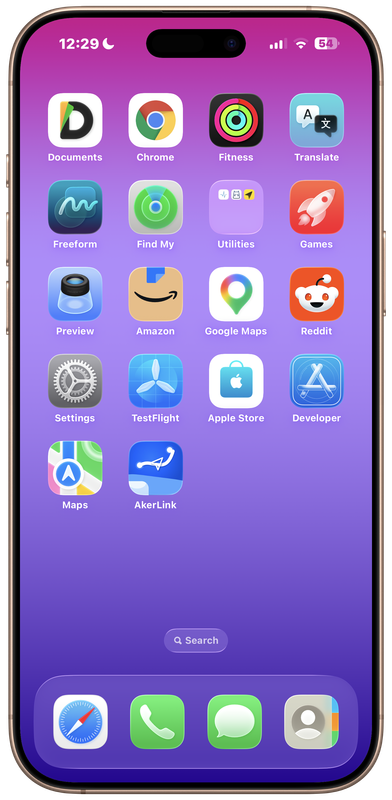
Before connecting GF Dongle, make sure you have successfully installed the Aker App provided by us.
Open the Aker App.
Step 2 – Connect GF Dongle
Insert the GF Dongle into your iPhone’s USB-C charging port.
After plugging it in:
- The LED indicator will flash several times.
- Then it should remain solid.
A solid LED means the dongle has been successfully recognized by your iPhone.
2 PIC
If the LED Keeps Flashing
If the LED continues flashing and never becomes solid, it means the dongle has not connected successfully.
Please try the following:
- Unplug the dongle.
- Plug it in again.
- Wait a few seconds.
If the LED still keeps flashing, please contact our customer support for assistance.
Step 3 – Connect GF Dongle in Aker App
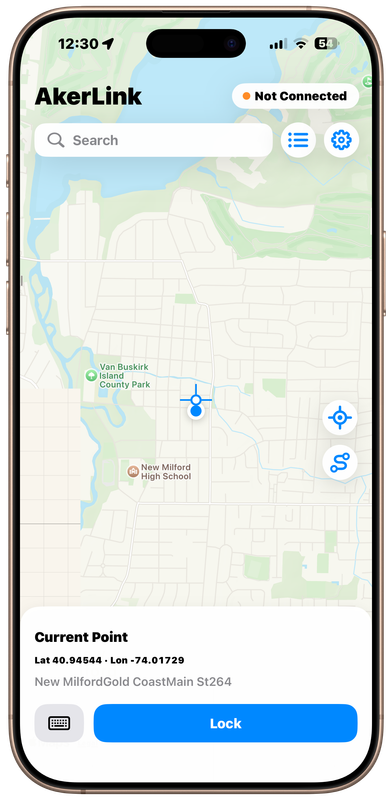
With the dongle inserted, return to the Aker App. Tap the “Not Connected” button in the upper-right corner.
A pop-up window will display available devices. Locate GF Dongle, then tap “Connect”.
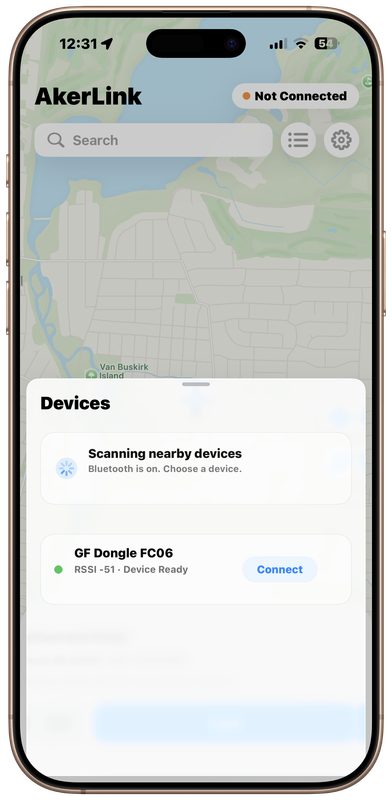
Wait a few seconds while the connection is established.
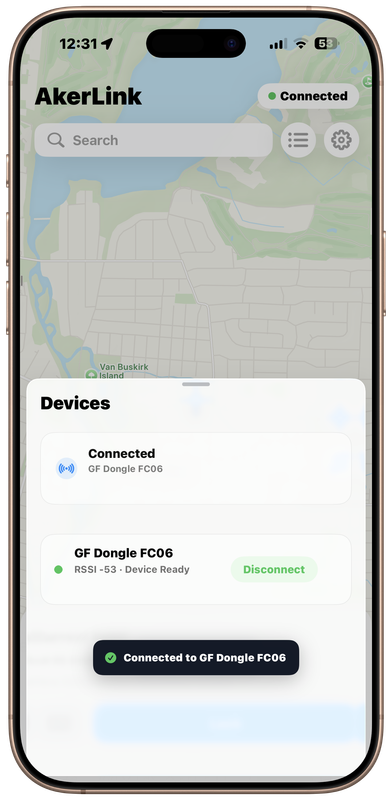
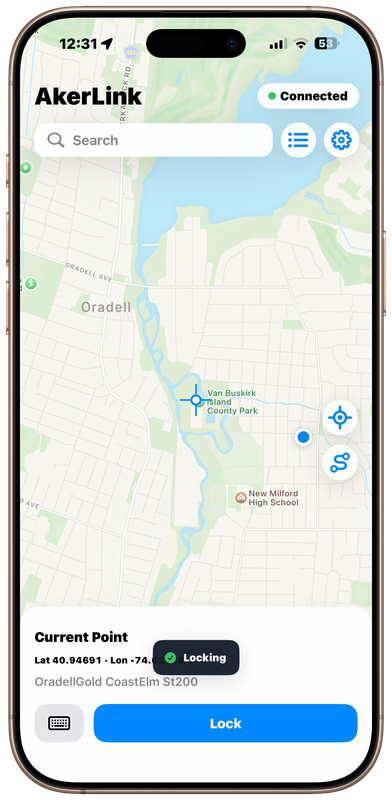
Once connected successfully, the status in the upper-right corner will change from “Not Connected” to “Connected”. This means your GF Dongle is ready to simulate GPS locations.
Step 4 – Start GPS Simulation
On the map inside the Aker App:
- Select the location you want to simulate.
- Tap the “Lock” button.
Your iPhone’s GPS location will immediately change to the selected location.
You can now open supported apps that use GPS, and they will receive the simulated location provided by GF Dongle.
Troubleshooting
The LED Keeps Flashing
Possible Cause
The iPhone did not recognize GF Dongle.
Solution
- Unplug and reconnect the dongle.
- Make sure it is fully inserted.
- Try reconnecting again.
- If the problem persists, contact our customer support.
“Not Connected” Is Still Displayed
If the app still shows “Not Connected”:
- Verify that the dongle’s LED is solid.
- Tap “Not Connected” again and reconnect the device.
- Restart the Aker App if necessary.
If the issue continues, please contact our support team.
Video Tutorial
Or you can watch this video on Youtube: https://youtu.be/vKa3CYztVRY


