User Guide
How to Simulate a Long-Distance GPS Location with GFBT Lite
This guide explains what to do when the simulated location is far away from your real location. For nearby locations, you can usually move the map, choose a point, and tap Lock directly. For long-distance simulation, one extra step is required: Turn Location Services off for about 3 seconds, then turn it back on. This helps iPhone refresh the active GPS location and apply the new simulated location successfully.
Before you start Simulate a Long-Distance GPS Location
Make sure GFBT Lite is already connected to your iPhone and the Aker app.
You should see Connected in the upper-right corner of the Aker app.
Step 1: Check your current location
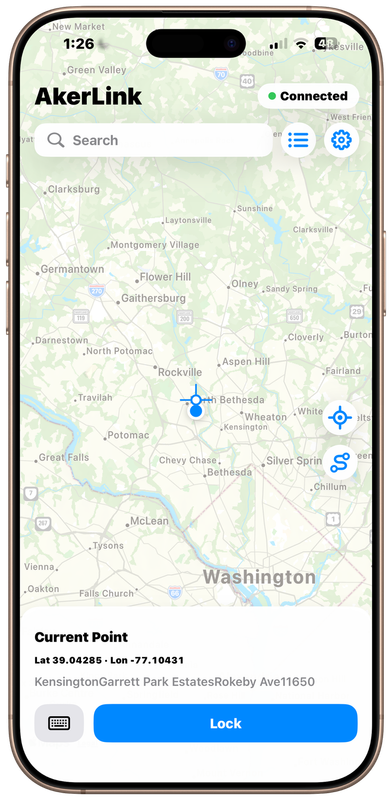
Open the Aker app and confirm your current location.
In this example, the current point is near Washington, DC:
Lat 39.04285
Lon -77.10431
This is the starting location before long-distance simulation.
Step 2: Move the map to a far-away destination
Move the map to a far-away location.
In this example, the destination is Dallas, Texas.
Choose the destination point and tap Lock.
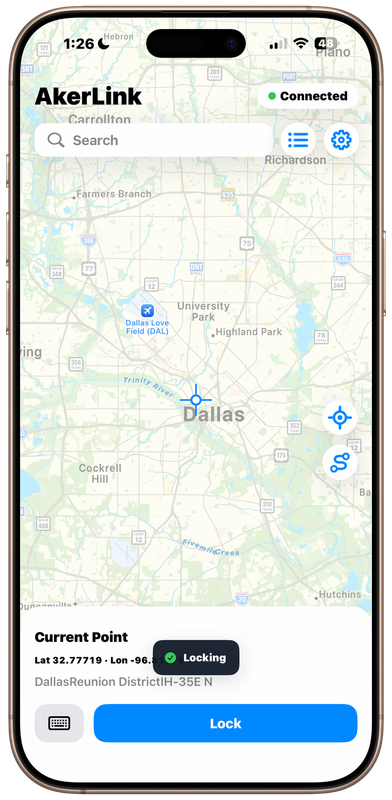
At this moment, the simulated location may not be fully activated yet.
If the new location does not take effect successfully, continue with the Location Services refresh steps below.
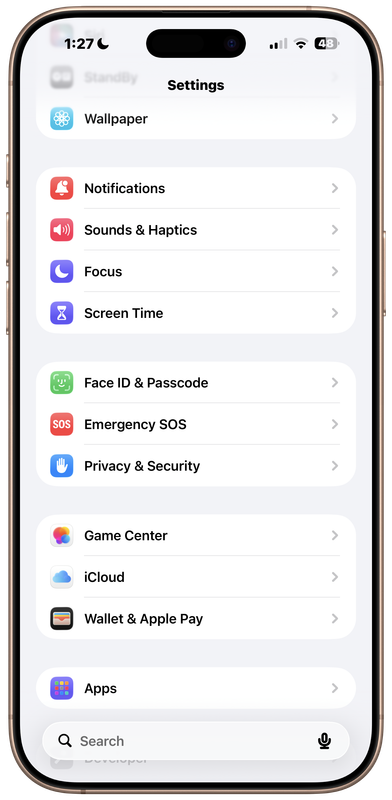
Step 3: Open iPhone Settings
Go to iPhone Settings.
Tap Privacy & Security.
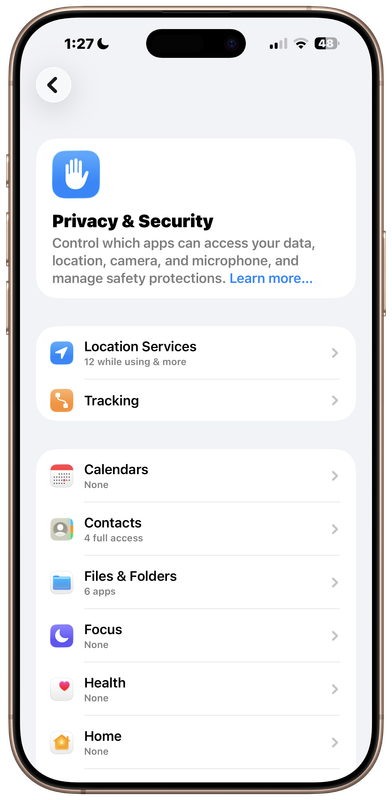
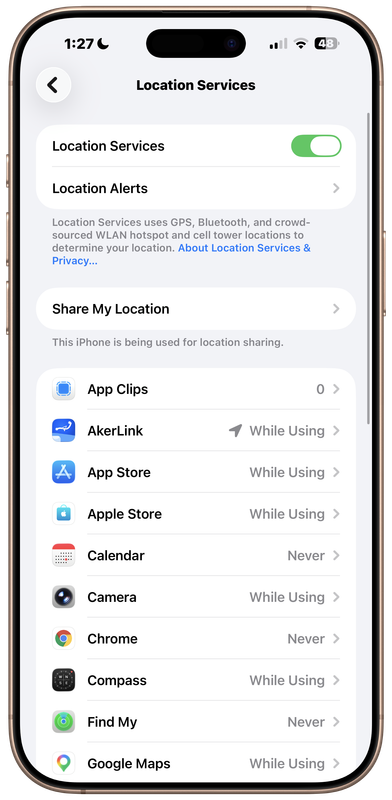
Step 4: Open Location Services
Inside Privacy & Security, tap Location Services.
Step 5: Turn off Location Services
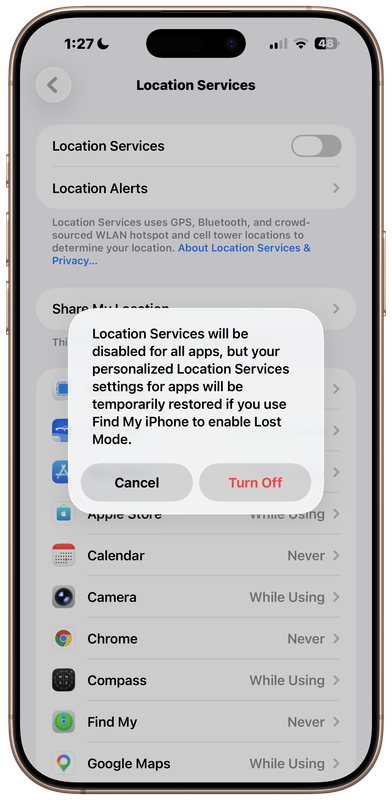
On the Location Services page, turn off the Location Services switch.
When the confirmation message appears, tap Turn Off.
Step 6: Wait for about 3 seconds
After Location Services is turned off, wait for about 3 seconds.
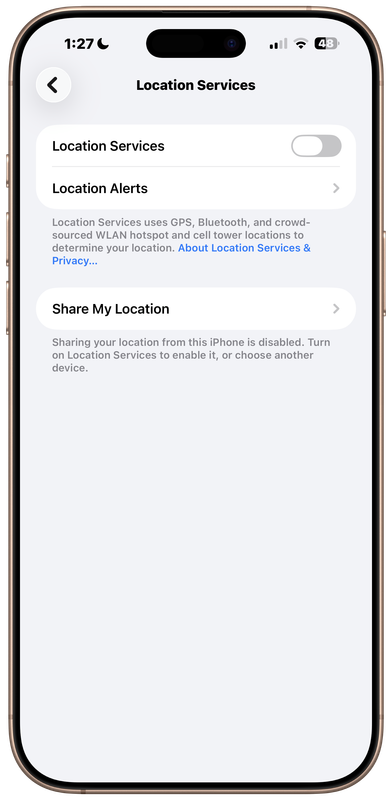
This short pause allows iPhone to clear the previous active GPS state.
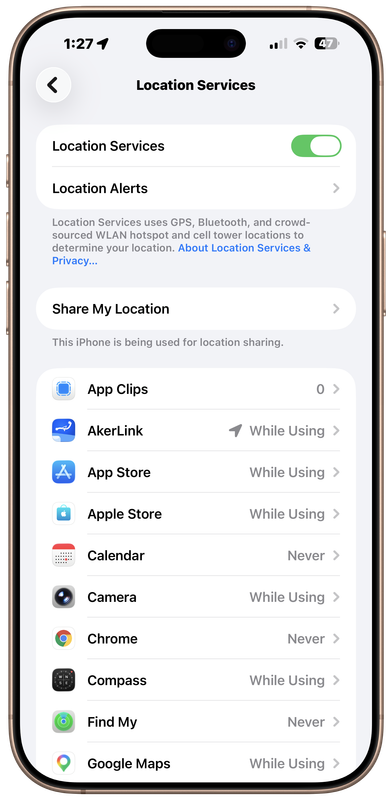
Step 7: Turn Location Services back on
Step 8: Return to the Aker app
Switch back to the Aker app.
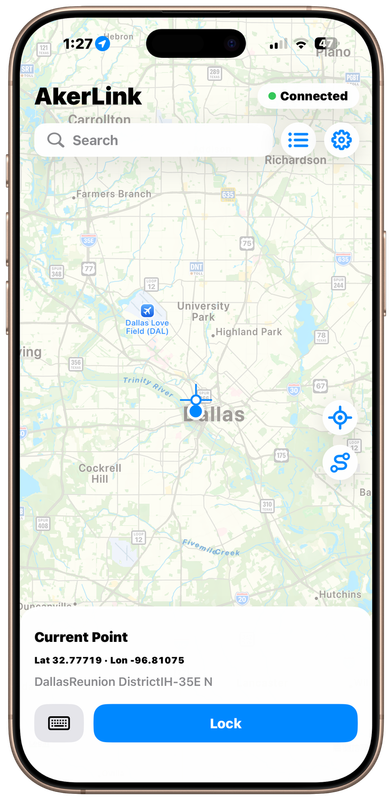
You should now see that the long-distance simulated location is active.
In this example, the current point is now in Dallas:
Lat 32.77719
Lon -96.81075
Important note
This extra Location Services refresh is only needed when the simulated location is far away from the real location.
Once the long-distance simulated location is successfully activated, that location becomes your current “real” location for simulation purposes.
After that, nearby location simulation around this new area can usually be done directly in the Aker app:
Move the map > Choose a nearby point > Tap Lock
You do not need to turn Location Services off and on again for every nearby point.
Full long-distance workflow
Use this order when simulating a far-away location:
1. Open Aker app
2. Confirm GFBT Lite is connected
3. Move the map to a far-away destination
4. Tap Lock
5. Go to Settings > Privacy & Security > Location Services
6. Turn Location Services off
7. Wait about 3 seconds
8. Turn Location Services back on
9. Return to Aker app
10. Confirm the simulated location is active
Detailed video tutorial
For a more detailed walkthrough, watch the video tutorial below:
Or open it directly on YouTube:


