User Guide
How to Simulate GPS Movement on iPhone with GF Dongle & GFBT Lite (Route Planning Guide)
Simulate Movement Along a Route with GF Dongle or GFBT Lite Instead of simulating a single GPS location, the Route Planning feature allows your device to simulate movement along a custom route….
Simulate Movement Along a Route with GF Dongle or GFBT Lite
Instead of simulating a single GPS location, the Route Planning feature allows your device to simulate movement along a custom route. This is useful when you want your GPS location to move naturally from one place to another.
Before you begin
Make sure your GF Dongle or GFBT Lite is successfully connected to the Aker App, and verify that single-point GPS simulation is working properly before using Route Planning.
Step 1 – Open Route Planning
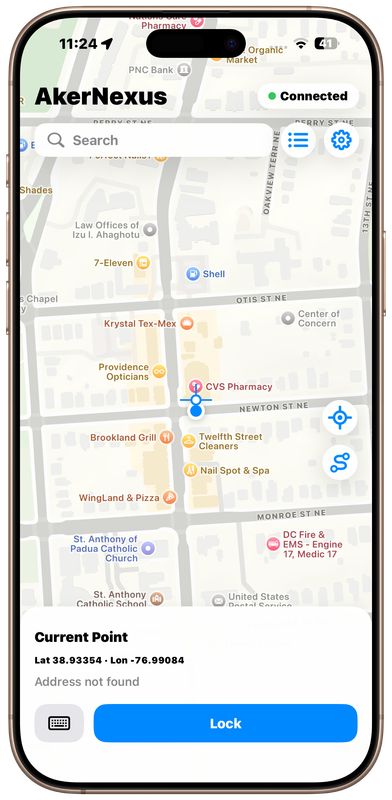
On the main screen of the Aker App, tap the Route Planning icon (the curved path icon) located in the bottom-right corner to enter the Route Planning page.
Step 2 – Add Route Waypoints
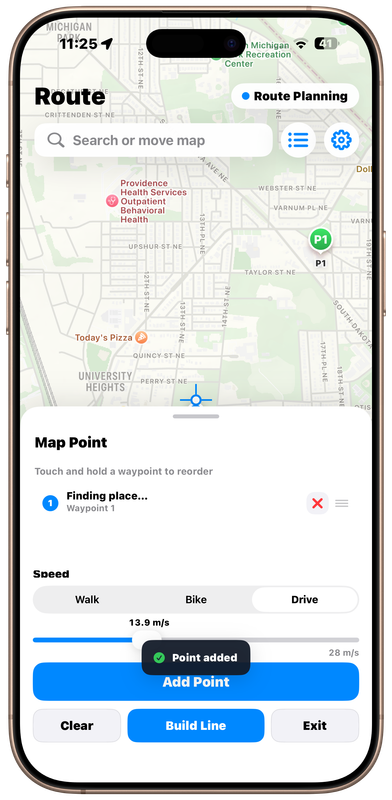
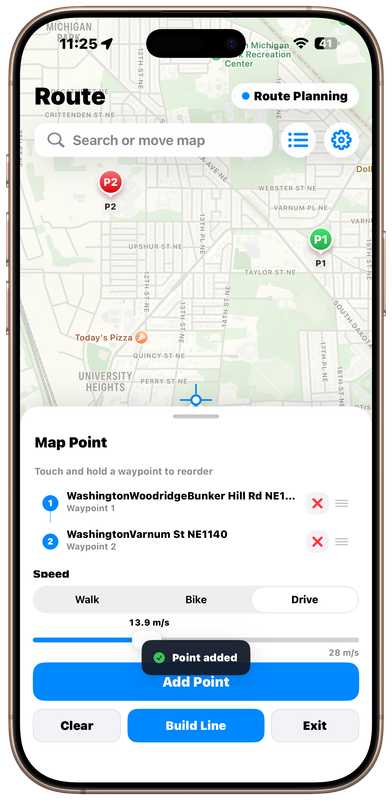
Tap anywhere on the map to add the locations you want your simulated route to pass through.
The Add Point Button means add point from your Favorites list. You can just tap the map if you want to add point from the map.
You can continue tapping the map to add multiple waypoints. The simulated movement will follow these points in the order they are added.
Step 3 – Build the Route
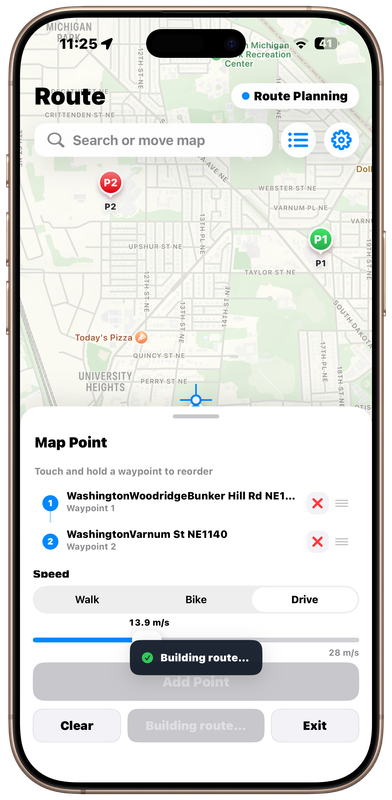
After all waypoints have been added, tap the Build Line button.
The Aker App will automatically calculate and generate a route connecting all of the selected locations.
Step 4 – Route Is Ready
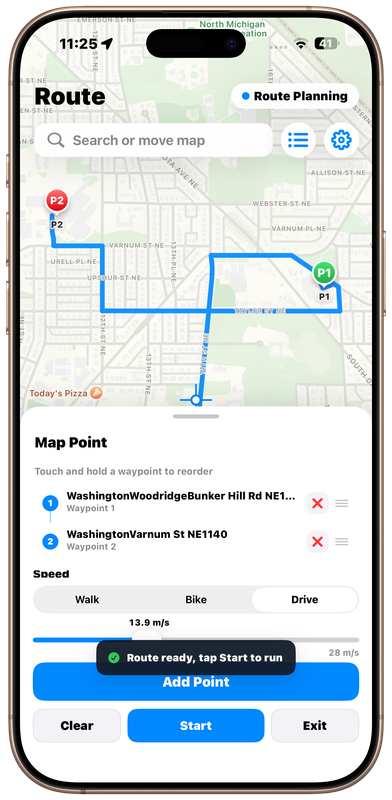
Once the route has been successfully generated, a confirmation message will appear:
“Route ready, tap Start to run.”
This indicates that your route is ready for simulation.
Step 5 – Start Route Simulation
Tap the Start button to begin the route simulation.
You will see the blue location dot move along the generated route on the map, simulating real GPS movement.
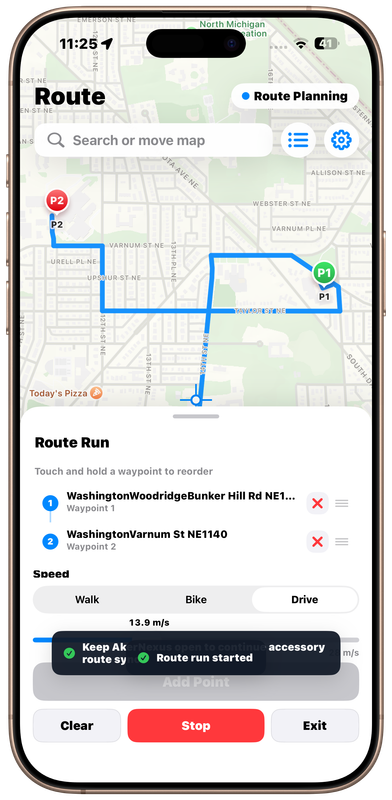
Step 6 – Exit Route Planning
When you are finished using Route Planning, tap the Exit button in the bottom-right corner.
The app will return to the standard Single Location Simulation mode.
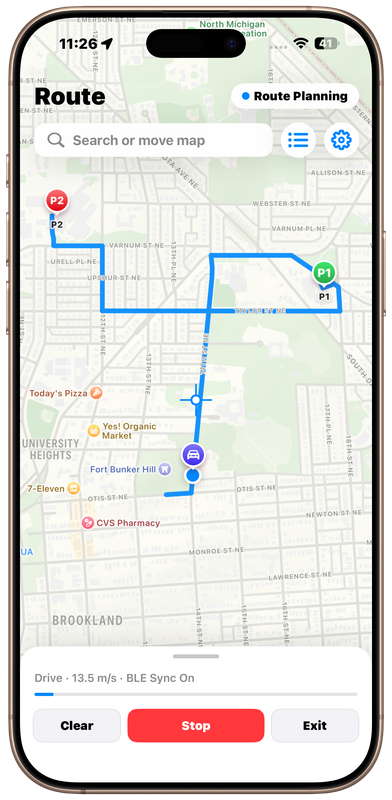
Additional Features
The Route Planning page also includes several useful options:
Reorder Waypoints – Change the sequence of the route by adjusting the order of the selected waypoints.
Adjust Movement Speed – Set the desired simulation speed to match different movement scenarios.
Tips
Always test single-point GPS simulation before starting Route Planning.
Add enough waypoints to create a more natural movement path.
If you modify the route, tap Build Line again to regenerate the route before starting the simulation.
You can exit Route Planning at any time and return to normal GPS simulation.
Conclusion
Route Planning makes it easy to simulate continuous GPS movement between multiple locations. With GF Dongle or GFBT Lite and the Aker App, you can quickly create a custom route, adjust the movement speed, and simulate realistic location changes with just a few taps.


